
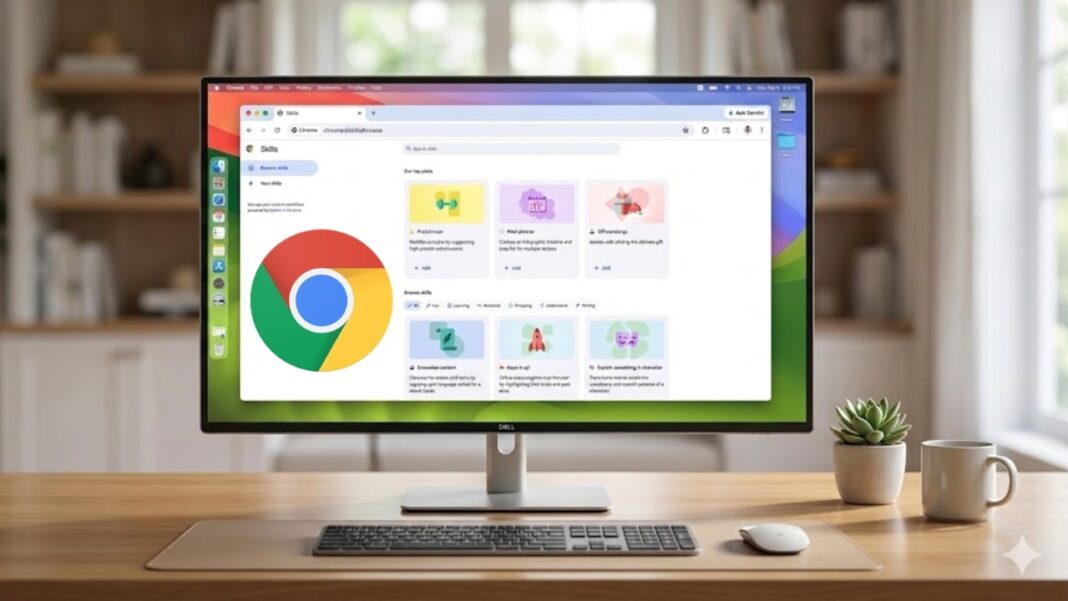
Google is making it easier for you to use Gemini on Chrome. Now, you can save the prompts that you regularly use with Gemini as “Skills.” The company says that this can not only help you improve productivity but also save time, as your repetitive tasks can be completed in just a click.
However, these Chrome Skills are not just for work. Google says that you can even do things like comparing prices while shopping for clothes or finding food recipes via this feature. Here is how it works.
How to use Google Chrome Skills?
Skills are essentially prompts that you use with Google Gemini on Chrome. The AI model is integrated on Chrome, which can be accessed on any webpage. But what makes Skills different is that you can save the prompts that you use regularly, and then ask Gemini to do the task with a single click.
To create your own Skill, you just need to type a prompt on Gemini and save it as a Skill. Once created, you can then access the Skill by tapping on Gemini on the top-right corner of Chrome.
After you open the AI chatbot, you can type a slash or click on the plus-sign button to choose a particular Skill, such as comparing prices while shopping across different sites. Then Gemini will do the work for you across different tabs, bringing you all the information.
Do note that a Skills prompt will ask for confirmation before taking certain actions, such as adding an event to your calendar or sending an email.
Google has over 50 preset Skills for you to try. Some of these include quickly calculating protein macros for recipes, generating side-by-side comparisons of product specifications, and scanning lengthy documents for essential information. You can also customise these presets to better suit your particular needs.
Google Skills availability
Google states that Skills on Chrome are being rolled out to users who have the browser language set to US English. The feature can be accessed on any desktop device signed into a Google account.