
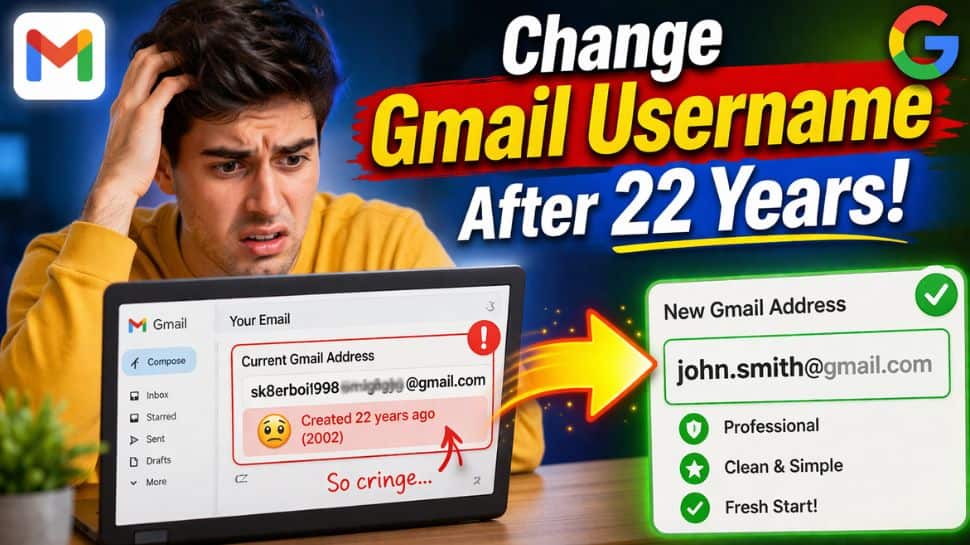
Gmail Username Change: Google is getting ready to introduce a much-awaited feature that lets users move on from the awkward email addresses they created years ago. For the first time in 20 years, users will be able to change the part of their Gmail address that comes before “@gmail.com” without losing any data. As part of its 22nd anniversary celebrations (Gmail was launched on April 1, 2004), the tech giant has announced this update, which will allow users to create a new User ID while keeping their old one.
The update was confirmed by CEO Sundar Pichai in a post on X, where he wrote, “2004 was a good year, but your Gmail address doesn’t need to be stuck in it. To say goodbye to v0t3f0rp3dr02004@gmail.com or mrbrightside416@gmail.com (or whatever you were into at the time), go to your Google Account settings and choose any name available. You’ll keep your old username, and you can sign in with both.” However, Google said that the feature will be rolled out gradually, so it may not be available to all users immediately.
Gmail Username Change: How it works
The update allows user to choose a new username without losing any of your account history. Your photos, messages, and files will remain exactly as they are. Another useful feature is that your old email address doesn’t disappear. It becomes an “alternative” address, so emails sent to your old ID will still reach your inbox. You can also use either your old or new username to sign in to services like YouTube, Maps, and Google Drive.
Gmail username update comes with these restrictions
Users can change your Gmail address only once a year, and only up to three times in total. If you change your mind, you can switch back to your original address anytime. Your new username must be unique and not used by anyone else before. Google also advises backing up your data before making the change, just to stay safe. Right now, this feature is rolling out to users in the United States.
How to change your Gmail username
Step 1: Users need to open their Google Account settings on a phone or computer.
Step 2: They must navigate to the Personal info tab.
Step 3: Under Contact info, they should select Email and then Google Account email.
Step 4: If the feature is available, they will see and can select the option to change the Google Account email.
Step 5: A new, unique username must be entered that has not been used previously.
Step 6: Users are required to follow the on-screen prompts to confirm and save the changes, and it is recommended to back up data before completing the process.