


Blurry selfies or low-quality portraits can be really annoying. You want something sharp, natural-looking, but without spending hours fiddling with editing software. It might seem impossible at first. But tools like Google Gemini reportedly make it surprisingly easy. With a clear prompt, you can enhance a portrait in seconds, keep the person’s identity intact, and improve lighting, depth, and detail at the same time. Experts say the trick isn’t just the AI; even a small mistake in the instructions can make the face look off. One simple, structured prompt can turn a low-res photo into something that feels like it was shot on a high-end camera.
Know how to use the right prompt, steps, quick tips, and give a few extra pointers to get better results fast.
How to enhance image quality using Google Gemini prompts
Google Gemini is reportedly great for fine details. It handles subtle things like skin texture, facial geometry, and background consistency. That makes it ideal if you want to preserve identity.
Start by uploading your portrait in JPG or PNG format. Tiny, blurry images might work, but the AI often produces cleaner results with slightly better quality originals.
A good prompt is short, precise, and clear. Here’s a version you could use:
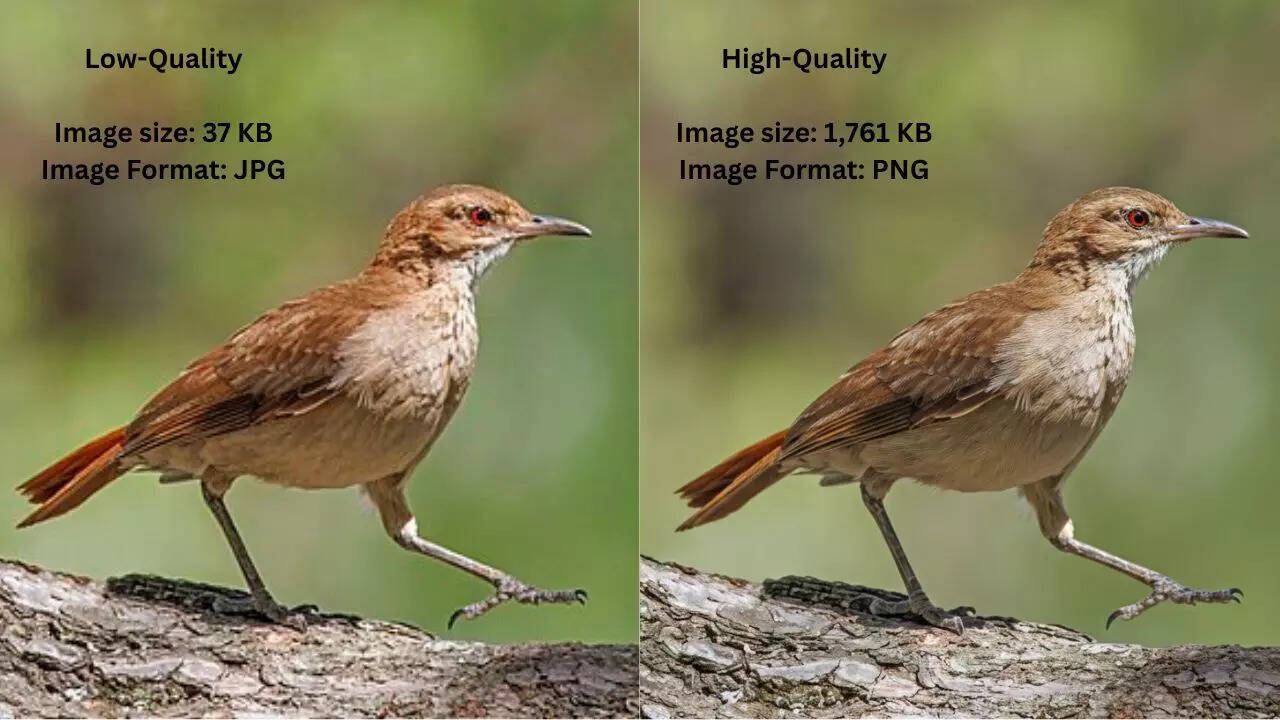
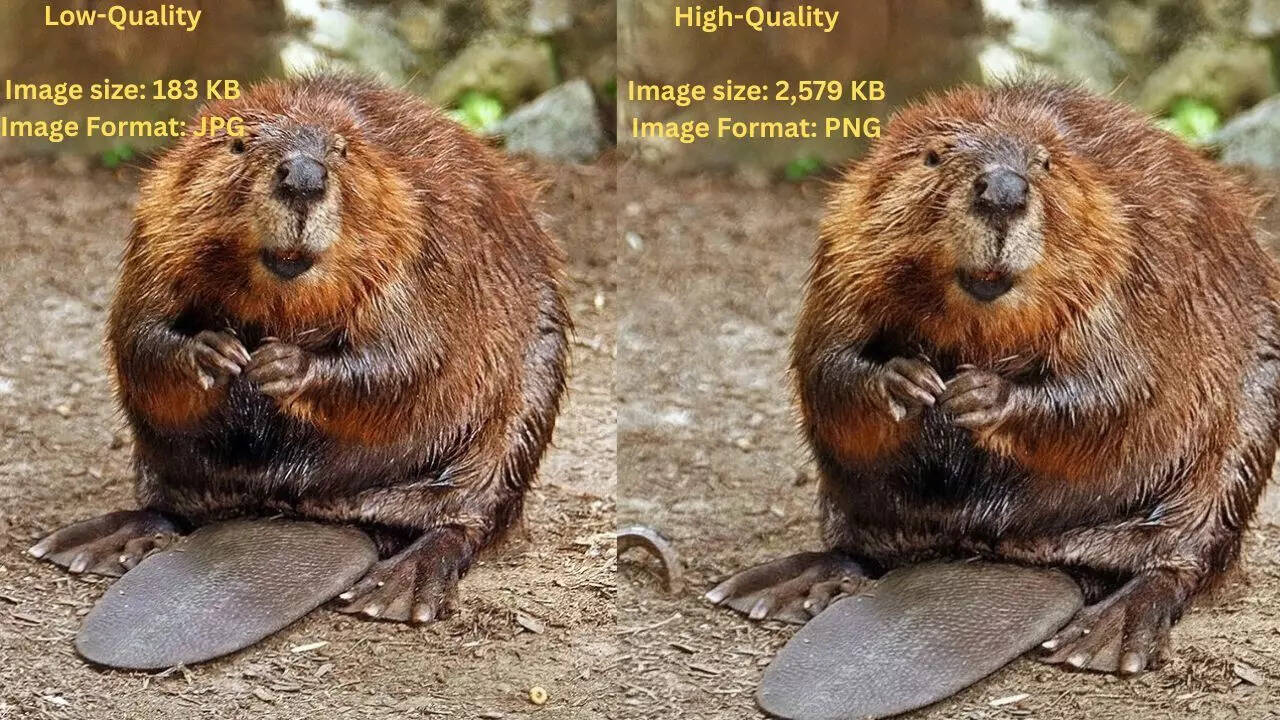
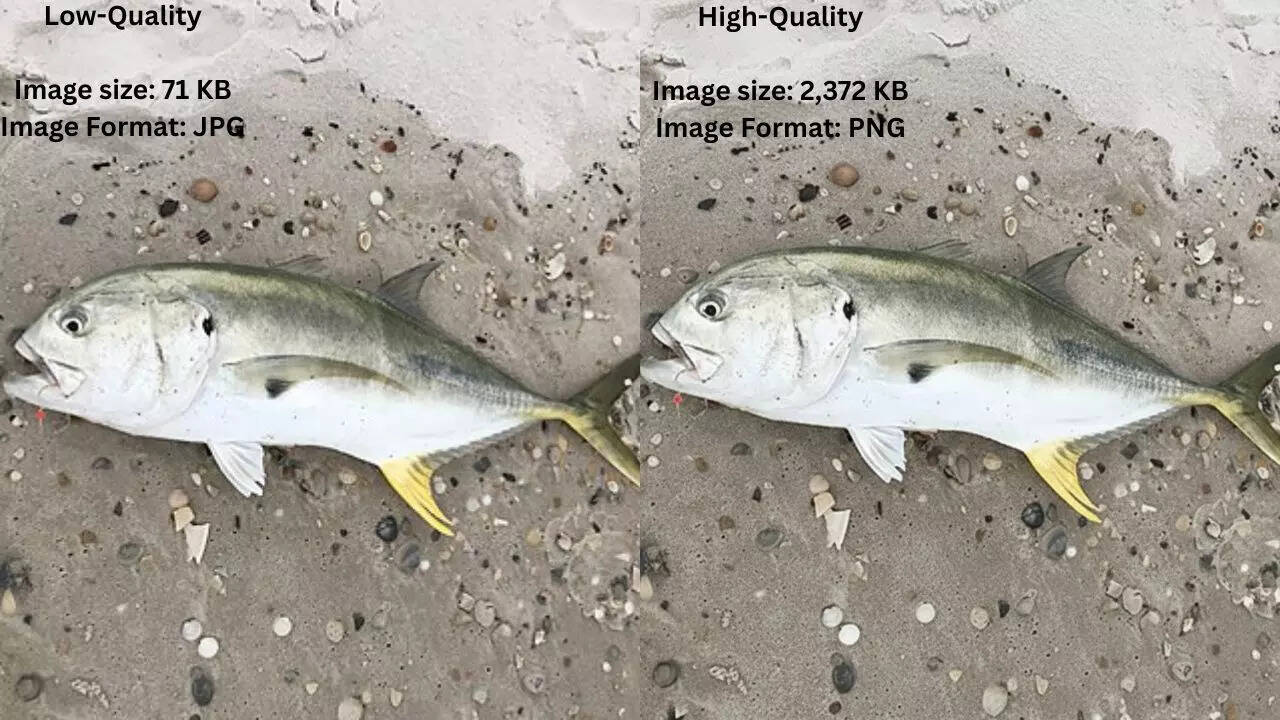
Once the prompt is ready, run it in Google Gemini. Usually, it takes only a few seconds. The AI reportedly sharpens facial features, balances lighting, and keeps the environment intact. Results often look immediate. But sometimes minor tweaks are needed, depending on the original image.
Quick tips to enhance the low image quality
-
Keep prompts simple. Too many instructions can confuse the AI.
-
Mention camera or lens details if you want a realistic, premium look.
-
Be specific about lighting. Indicate angles, shadows, and mood.
-
Avoid vague instructions like ‘make it pretty. ’ Concrete guidance works best.
-
Try small iterations. Adjusting contrast or minor feature cleanup can improve realism.